
Parents
How to Set Parental Controls to Keep Your Child Safe Online
Keeping your child safe online
Setting privacy and safety controls
Parental controls are settings and tools that help you manage what your child can see and do on their devices and online. They allow you to set screen time limits, filter content and control app downloads. This can help reduce online risks and support healthy digital habits.
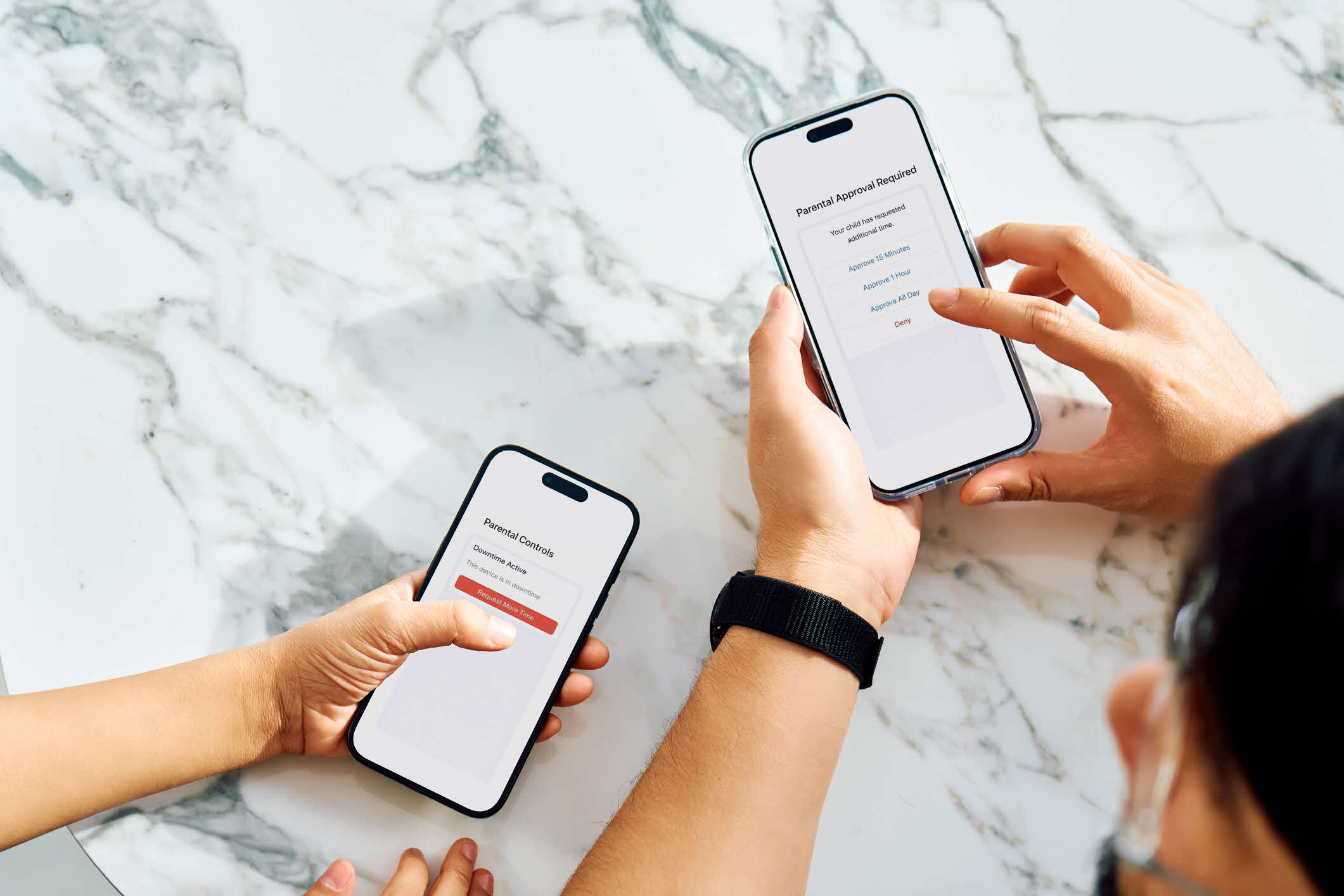
Below are some ways you can set parental controls to help keep your child safe online.
Mobile devices, laptops and desktops
iOS devices
You can set up parental controls to manage your child's iPhone and iPad usage, such as:
Content & Privacy Restrictions (opens in new tab):
Limit app downloads and purchases, block inappropriate content, restrict Game Centre features, prevent changes to privacy settings and more
Communication Safety (opens in new tab) and Sensitive Content Warning (opens in new tab):
Prevent your child from viewing or sharing photos or videos that contain nudity
Provide your child with age-appropriate safety advice and resources to help them make safe choices
You can also apply these settings directly to your child’s iOS device.
macOS devices
Manage your child's device usage on macOS laptops and desktops using Family Sharing (opens in new tab)
In Screen Time settings (opens in new tab), you can monitor app and website activity, set screen time limits, restrict content and purchases and lock settings with a passcode
Android devices
With Android 17 or later, you can manage your child's device use with on-device settings (opens in new tab) and Google Family Link (opens in new tab)
You can restrict content, approve or block apps, set screen time limits and more
The Google Play Store also offers parental controls (opens in new tab) to restrict app downloads as well as limit purchases based on maturity level
Windows/PC devices
Manage your child’s online activity on Windows devices with Microsoft Family Safety (opens in new tab)
You can block websites, check in on their activity at any time and view activity reports for sites, apps and games
Beyond the built-in parental controls, you can also install third-party parental control apps to monitor and guide your child’s online activities.
Game consoles
Major gaming consoles provide parental controls to help you manage your family's gaming experience. Learn how to enable parental controls for these consoles:
Nintendo Switch
Manage play time, in-game communication features and more with the Nintendo Switch Parental Control App (opens in new tab)
PlayStation
Track and manage your child’s play time, in-game purchases and more using the PlayStation Family app (opens in new tab)
Refer to this guide on setting parental controls on PlayStation consoles (opens in new tab)
Xbox
Manage play time, content access and spending using the Xbox Family Settings app (opens in new tab)
Generative Artificial Intelligence (Gen AI)
Gen AI tools are widely available today, offering a variety of formats from chat-style interfaces to image and video generators. While these tools offer convenience and learning opportunities, they also come with risks.
Enable parental controls on these Gen AI platforms to help safeguard your child’s use:
ChatGPT
Set up parental controls (opens in new tab) via the "Parental controls" tab settings
Gemini
Manage your child’s access (opens in new tab) via the Google Family Link app
Microsoft Copilot
Manage your child’s usage (opens in new tab) via the Microsoft Family Safety app
Not all Gen AI tools offer parental controls and many popular Gen AI tools are rated for users aged 13 and above. Some tools may even have an age rating of 18+. You should always refer to the age ratings to check whether a tool is appropriate for your child before they use it. Talk to your child to better understand their needs and interests as they explore Gen AI.
Internet Service Providers (ISPs)
In Singapore, the Infocomm Media Development Authority (IMDA) requires major ISPs to offer parental control features to their subscribers. These add-on services allow you to filter inappropriate content and monitor your child's online activity. Some of the parental control programmes offered in Singapore include:
MyRepublic: MySafe Lite (opens in new tab)
Singtel: Qustodio (opens in new tab)
Starhub: CyberProtect (opens in new tab)
Search engines
Search engines help children explore the internet, but without safeguards, they may encounter inappropriate content. Many search engines have a SafeSearch feature that filters explicit material. Enable this feature on search engines listed below to reduce the chances of your child seeing explicit and unsafe search results. This list is not exhaustive:
Bing
Enable SafeSearch through "Settings (opens in new tab)" on Bing.com
Manage SafeSearch for your child’s Google account or browser on this page (opens in new tab)
Yahoo
Enable SafeSearch through "Search Preferences (opens in new tab)" on Yahoo.com or the Yahoo Search app
Social media
As children spend more time on social media platforms, parents should stay informed about the privacy and security settings to help them protect their personal data, manage interactions with strangers online and prevent exposure to inappropriate content.
Learn more about the privacy and security features of some of the most popular social media platforms in Singapore here (opens in new tab).
While parental controls can keep your family safe online, no system is 100% foolproof. It is equally important to help your child develop healthy digital habits and have ongoing conversations about being safe, smart and kind online.